How it Works
Setting up protocol templates in Lime Admin
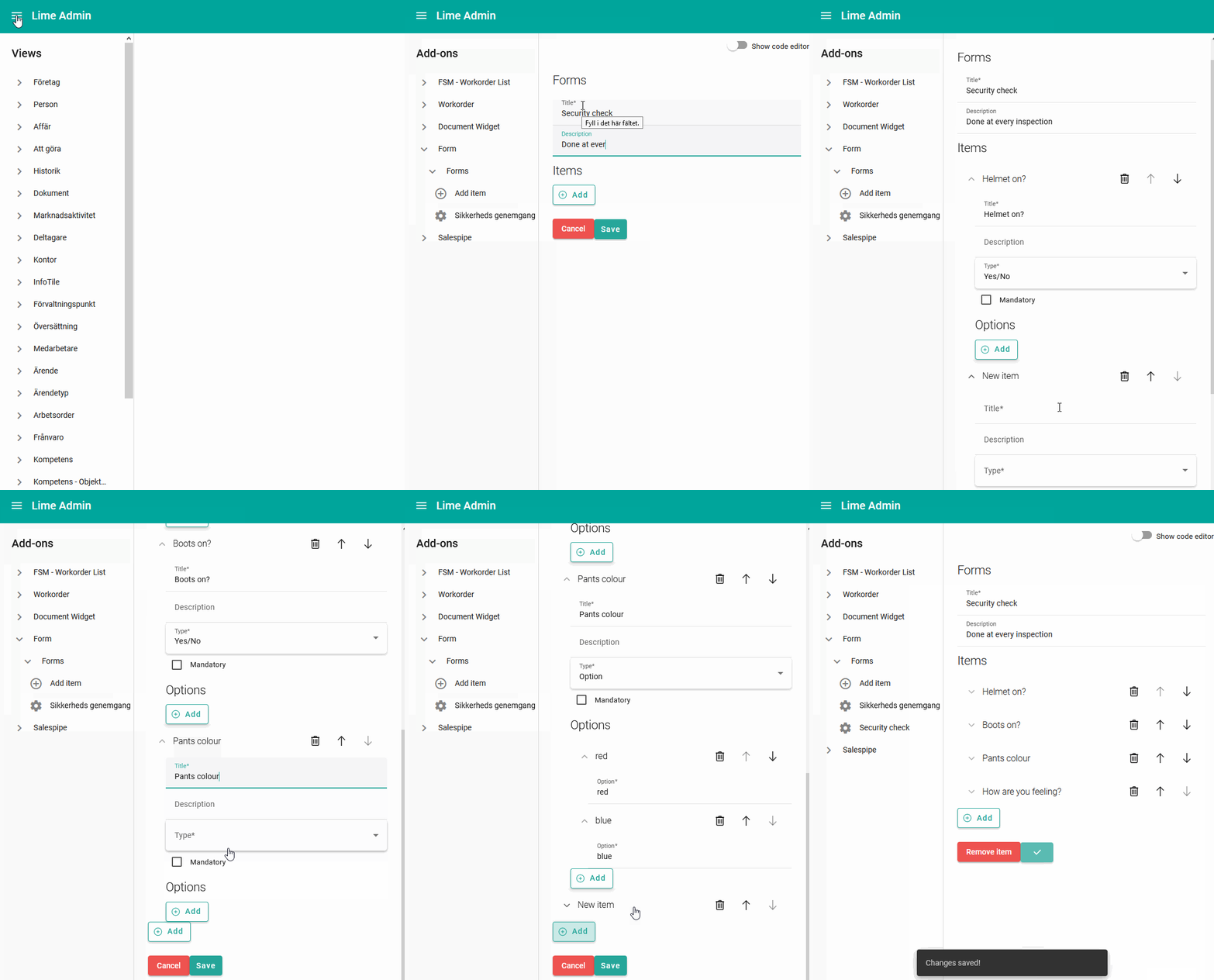
Protocols are defined using Lime Admin.
Defining actions
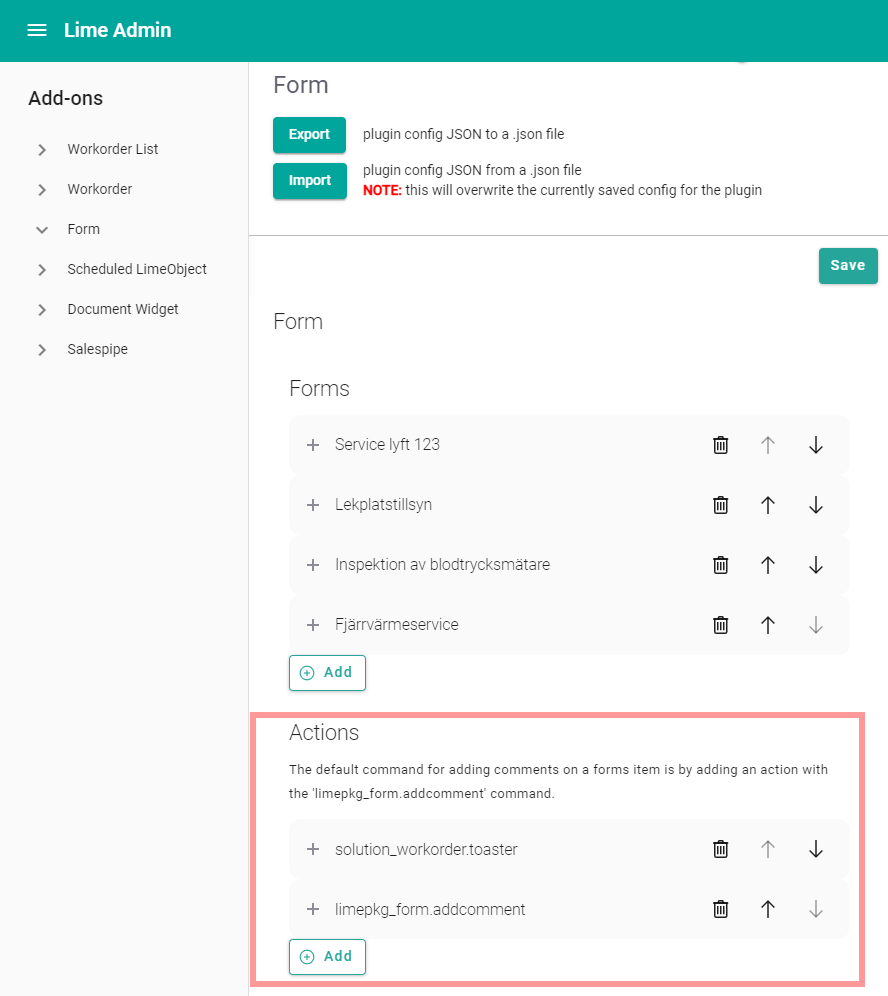
Under the Actions heading you define which actions should be available for each protocol answer.
Add a comment
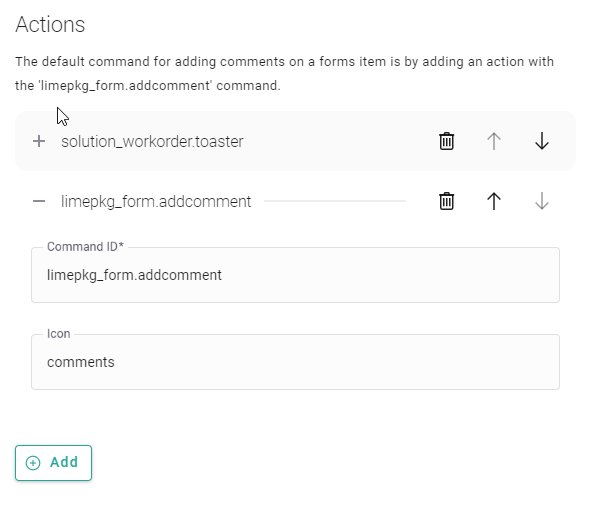
The ability (action) to add a comment to each answer comes out-of-the-box. Just add the following to the config:
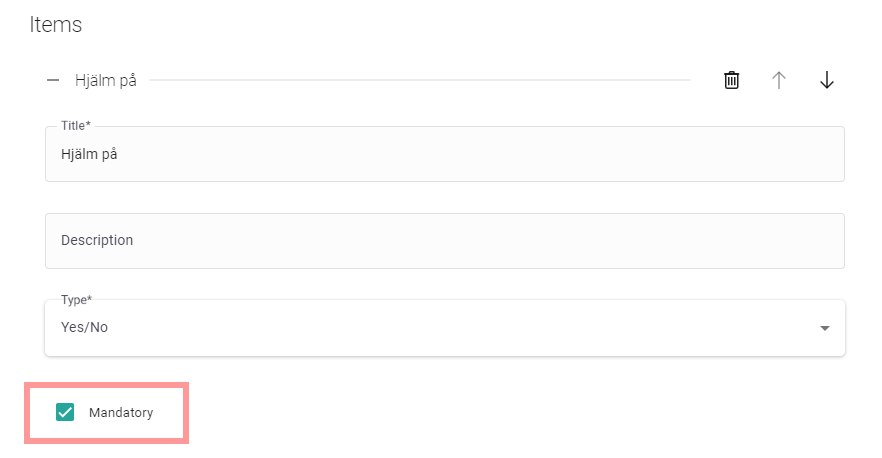
Mandatory protocol items
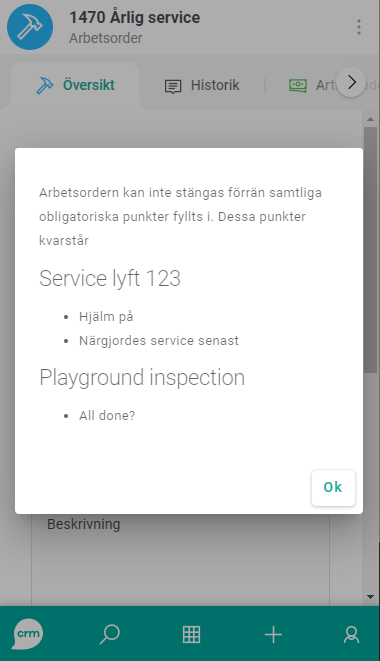
If a protocol item is marked as mandatory, the user can't finish the work order without answering these items.
Using protocols in the web client
Protocols are shown in the web client as a new tab on the parent object that owns them, for example on work orders.
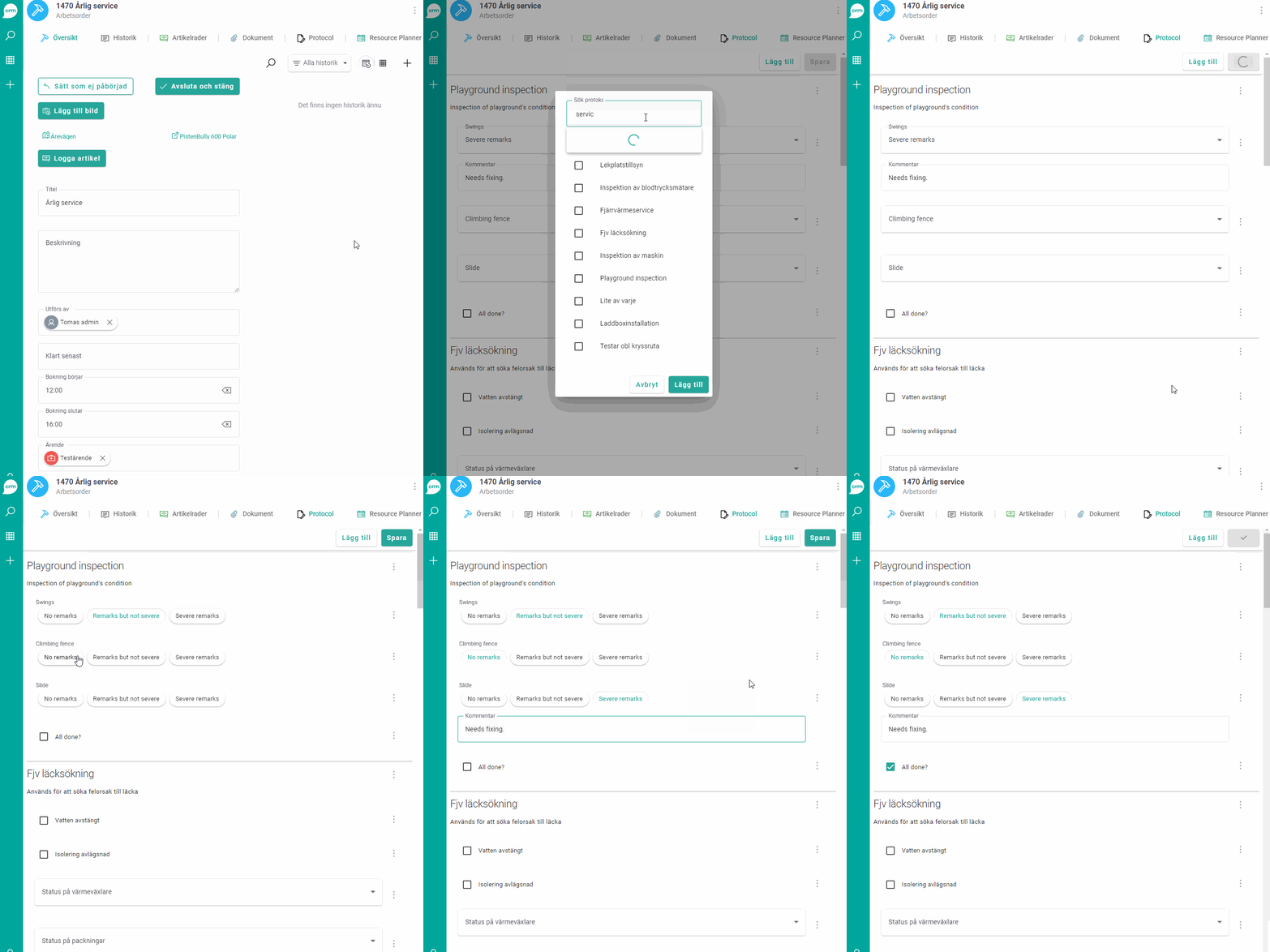
The user can add several protocols and several "copies" of the same protocol. For instance, adding a security check every day.
Changes are saved automatically. The form debounces changes for about 1.7 seconds and saves rapid edits in a single request.
There is no manual Save button. Save feedback is shown inline, to the left of the Add button:
Saving...with a spinner while a save is in progress.Saveddirectly after a successful save.Saved just nowand laterSaved X minutes agoafter successful saves.No unsaved changeswhen the form is loaded and no changes have been saved in the current view session.⚠️ Unable to saveonly when saving fails and there are unsaved changes.
Adding or deleting a protocol is also treated as a successful persisted change, so the status is updated to Saved just now after those operations.
Browsing protocols in the desktop client
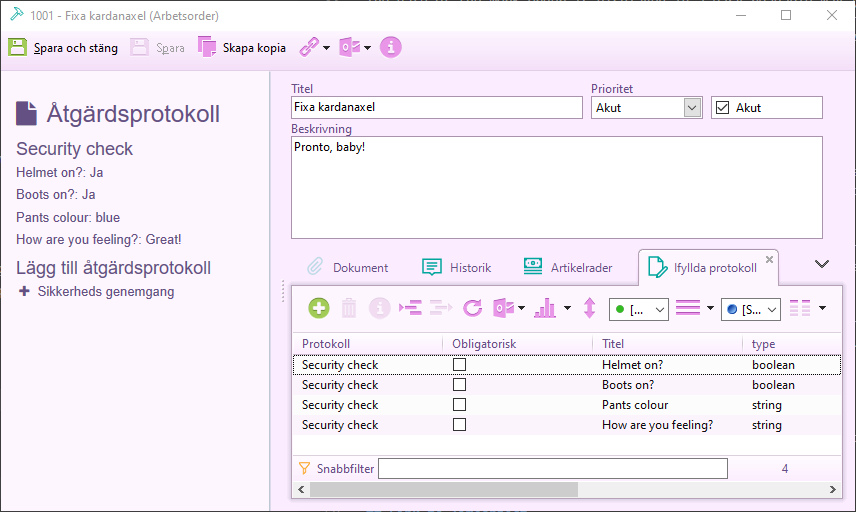
Protocols added to a parent object is shown in the desktop client in the action pad together with the answers.